 Remote Papi
One remote.
Every TV.
Remote Papi turns your iPhone and iPad into a remote for the smart TVs on your Wi-Fi. Set up each TV once. It remembers them and connects on its own. No ads, no account.
Download on the App Store Works with Samsung, LG, Sony, Google TV / Android TV and Roku, including Roku TV and Google TV models from TCL, Hisense and more.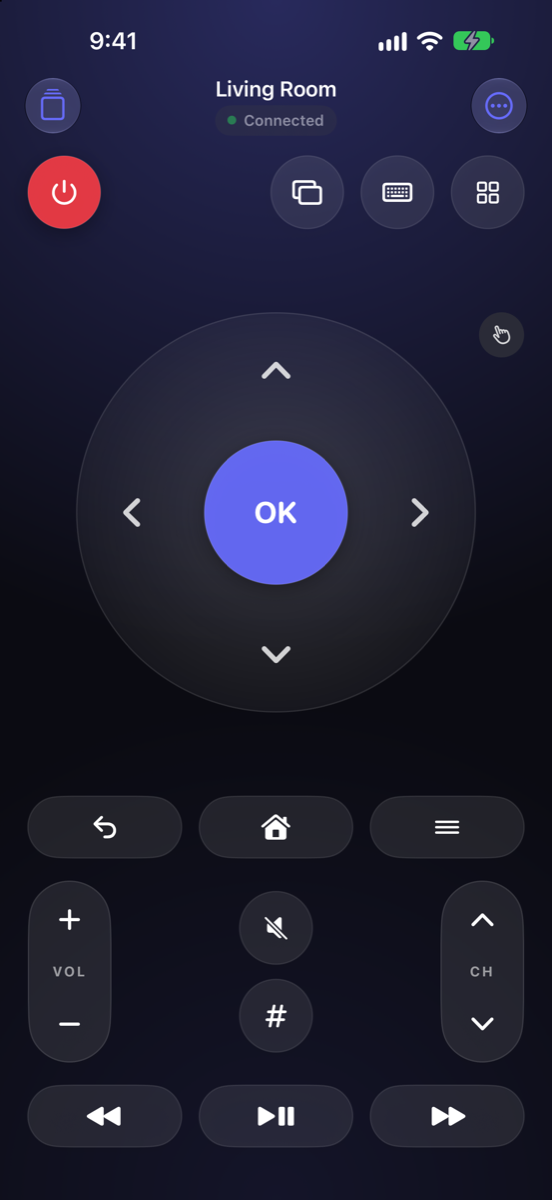
More than a remote
Volume buttons
Your iPhone's own side buttons change the TV's volume while the app is open.
Lock Screen remote
Power, volume, mute and play/pause on the Lock Screen and in the Dynamic Island.
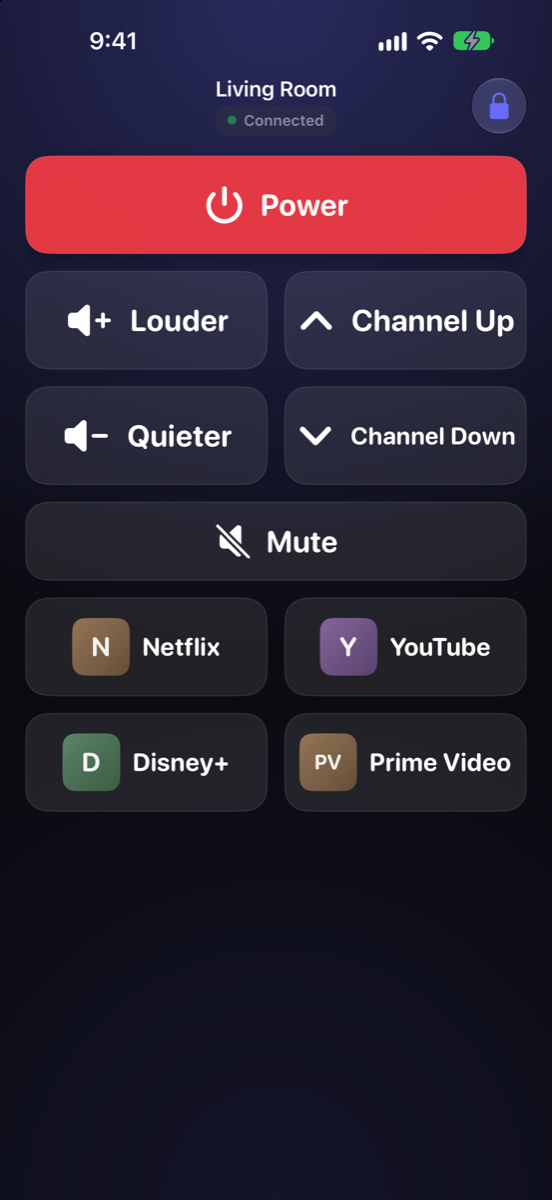
Simple Mode
A few big, labeled buttons and favorite apps for kids, grandparents and guests, locked with Face ID.
Scenes
“Movie Night”: turn on, wait, open your app. “Everything Off” at bedtime. One tap, or ask Siri.
Every TV, every room
Save all your TVs. Remote Papi picks the one that's on the network you're on.
Share with family
Show a QR code and another phone adds the TV in seconds. No passwords shared.
Turn your TV on with your phone
Turning a TV off from your phone always works. Turning it back on needs one setting on the TV. Menu names vary a little between models and years.
Samsung
- Settings › General › Network › Expert Settings (newer models: All Settings › Connection › Network › Expert Settings).
- Turn on Power On with Mobile.
- The first time you connect, choose Allow on the TV.
LG
- Settings › All Settings, then find Mobile TV On (General › Devices, or search Settings).
- Turn on Turn on via Wi-Fi.
- The first time you connect, accept the prompt on the TV.
Sony
- Settings › Network & Internet › turn on Remote start.
- Home network › IP control: set Authentication to “Normal and Pre-Shared Key” and choose a key.
- Enter that key in Remote Papi when you add the TV.
Google TV / Android TV
- The first time you connect, the TV shows a 6-character code. Type it into Remote Papi.
- To turn it on from your phone: Settings › System › Power & energy, and turn on Network standby (or Wake on Wi-Fi / Wake on LAN).
- Works with TCL, Hisense, Philips, Sony and other Google TV sets, plus Chromecast with Google TV.
Roku
- Settings › System › Advanced system settings › Control by mobile apps › Network access: Default or Permissive.
- Roku TVs (TCL, Hisense, Sharp, Insignia and more): Settings › System › Power › turn on Fast TV start.
- Roku sticks and boxes don't power off. They control the TV's power over HDMI.
Help
My TV isn't found
- Turn the TV on and put your phone on the same Wi-Fi.
- Allow Remote Papi to find devices: iPhone Settings › Privacy & Security › Local Network › Remote Papi.
- Tap Scan Again, or add the TV by its IP address (found in the TV's network settings).
Which TVs does it work with?
Samsung, LG and Sony smart TVs; Google TV and Android TV sets and streamers (including TCL, Hisense, Philips and Chromecast with Google TV); and any Roku stick, box or Roku TV. Not yet: Fire TV, Vizio and Apple TV. Your phone and TV need to be on the same home network.
The TV says no, or keeps asking to allow
Samsung and LG TVs approve each phone once, and Google TV shows a 6-character code to type in. Retry in Remote Papi and choose Allow on the TV within about 30 seconds. On Samsung, a phone set to Deny can be fixed in Settings › General › External Device Manager › Device Connection Manager › Device List.
Buttons stopped working
The TV may be asleep, your phone may have switched Wi-Fi, or the TV got a new address. Tap the red Offline pill to retry; Remote Papi searches for the TV automatically. Giving the TV a fixed IP in your router keeps things solid.
I have two Wi-Fi networks
If both come from the same router and it allows traffic between them, Remote Papi works from either. Otherwise join the TV's network.
Does Remote Papi collect my data?
No. It talks only to TVs on your own network, with no account, ads or analytics. See the privacy policy.
Still stuck? Email remotepapi@proton.me with your TV's brand and model.